
Download the mySQL web connector by clicking the following link: DOWNLOAD as shown in image SC-1 below.
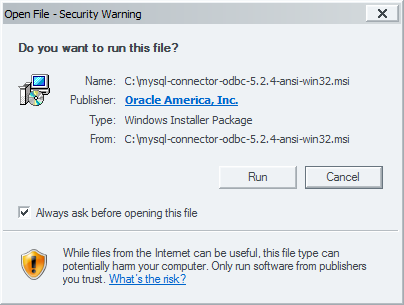 SC-1
SC-1Follow the prompts to install the MySQL Connector as shown in images SC-2 through SC-5.
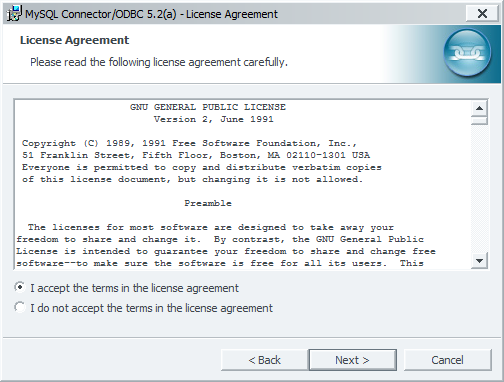 SC-2
SC-2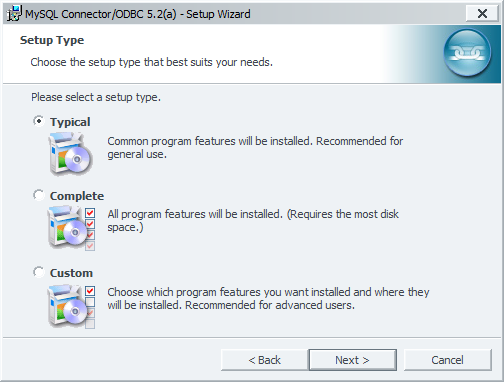 SC-2
SC-2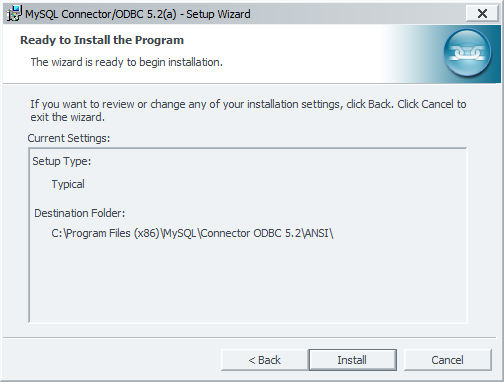 SC-2
SC-2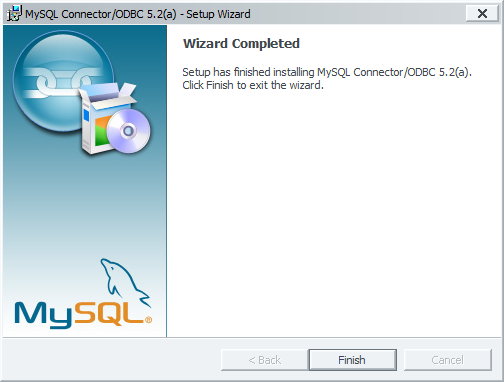 SC-2
SC-2You can tell which version of windows you have by going to computer, c drive and seeing if you have 2 program files folders (Program Files and Program Files (X86)) you have 64 bit windows and you should follow the direction for the 64 bit setup, if you see only Program Files you have 32 bit and should follow the directions for 32 bit.
Go to start button, then go to control panel followed by administrative tools.
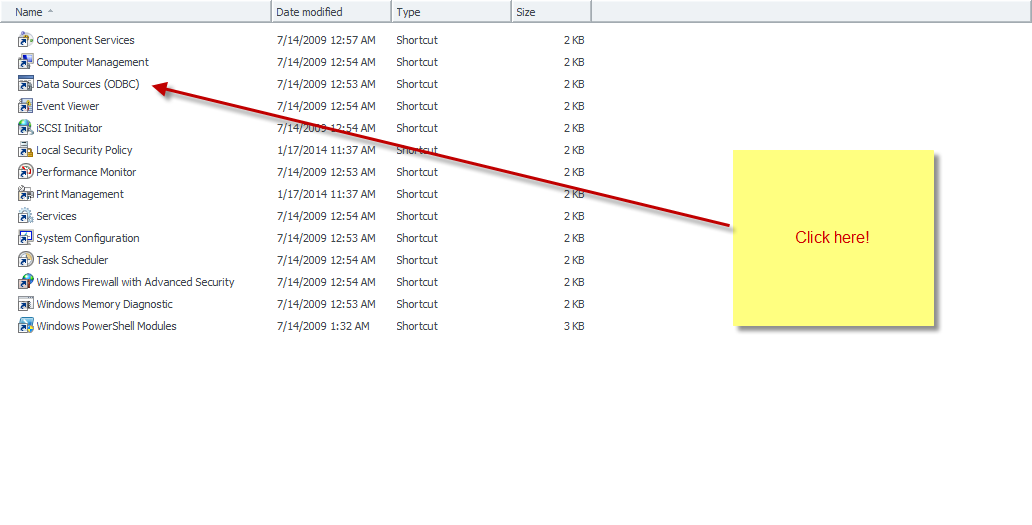 SC-3
SC-3Go to my computer and double click on your C:\ drive and go to the windows folder and double click syswow64. Scroll down till you see OBCAD32 and double click to run it.
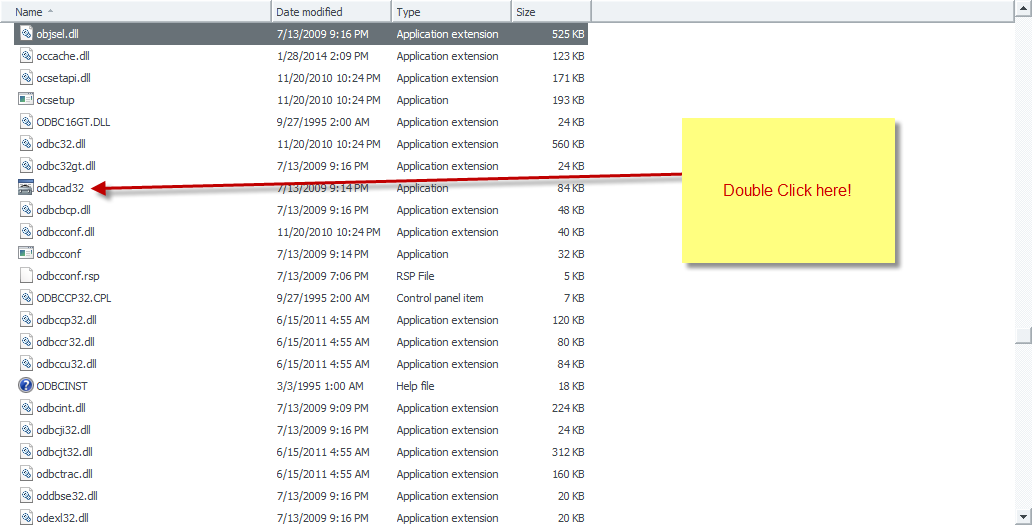 SC-5
SC-5Click on the add button and then select MySQL ODBC 52.a Driver.
 SC-6
SC-6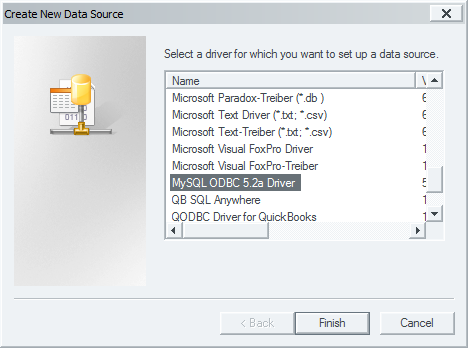 SC-7
SC-7Fill out the following window with your database credentials.
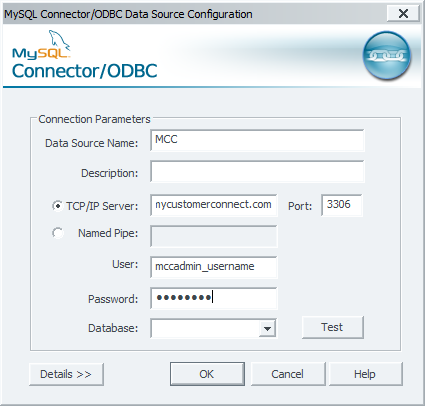 SC-8
SC-8Press OK and you should get a pop-up as shown below.
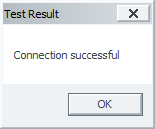 SC-10
SC-10